Privacy protection for shared and public spaces Free Chrome extension · Visual privacy layer

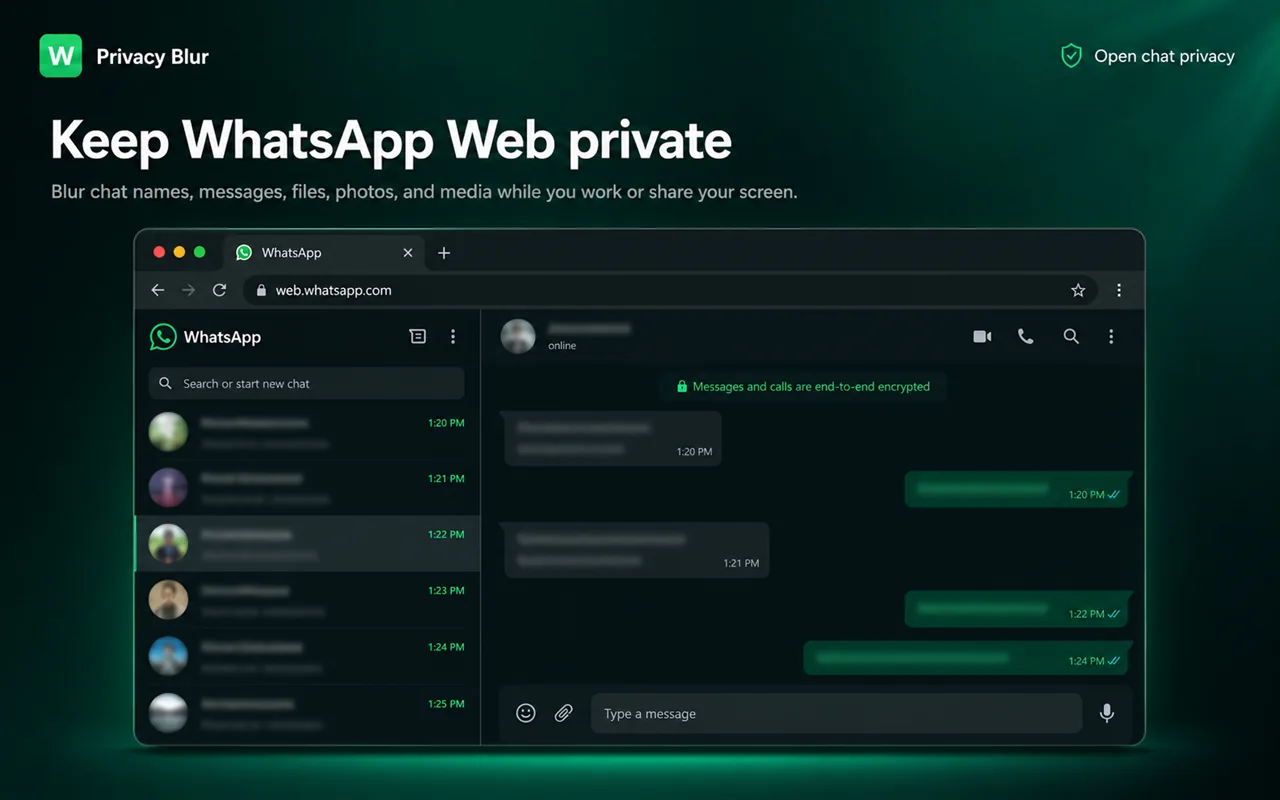
Blur WhatsApp Web when someone’s looking over your shoulder.

Hide names, previews, photos, media and messages in one click. Reveal only what you need.

Desktop Chrome · WhatsApp Web and WhatsApp Business Web

4.9 Rating on Chrome Web Store
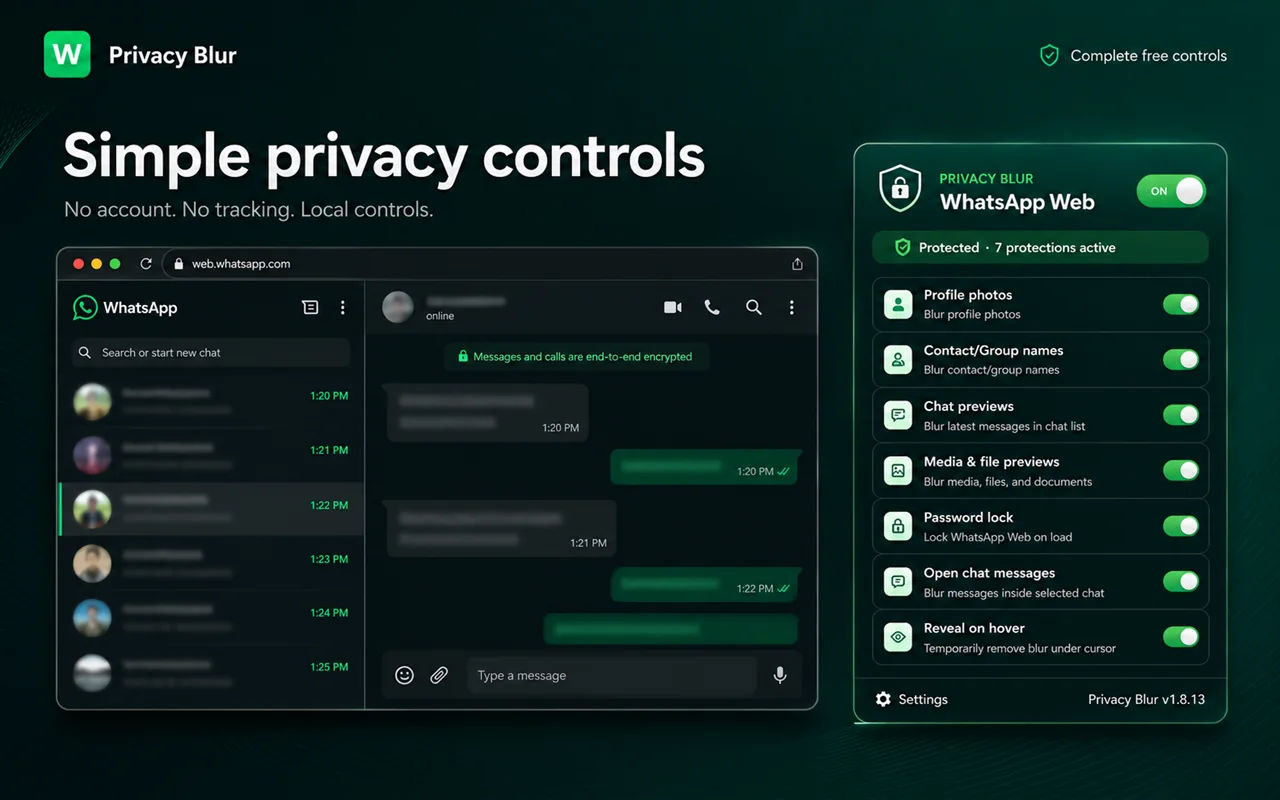
Privacy Blur controls
WhatsApp Web Privacy Blur controls protecting names, photos, previews, media, and messages
Verified Publisher Privacy Blur Studio
Works in WhatsApp Web No extra app required
Privacy First No analytics or tracking
Quick Setup Free · No account needed

Live demo

See Privacy Blur protect a real conversation.

Switch protection on, choose what stays private, and reveal only what you need.

Protection
Medium · 6 px

Protection active

Hover or focus on blurred content to reveal it temporarily. Desktop: hover a protected item. Touch: press and hold a protected item. Keyboard: focus a protected item. This interactive simulation uses sample conversations.

Add to Chrome — It’s Free
Sample content only. Your privacy settings stay local to your browser.
Add Privacy Blur to Chrome — It’s Free How it works

No account required · No tracking · Works locally

How it works

Private in under a minute.

Add Privacy Blur, open WhatsApp Web, then choose what to hide. No account needed.

  1. Step 1

    Add the extension

    Select “Add to Chrome” in the Chrome Web Store.

  2. Step 2

    Open WhatsApp Web

    Open WhatsApp Web in Chrome.

  3. Step 3

    Choose what to blur

    Turn on only the details you want to hide.

Add to Chrome — Free

Chrome Web Store reviews

What Chrome Web Store users say.

Public feedback from people using Privacy Blur.

5.0 Rating

Interactive feature explorer

Choose exactly what stays hidden.

Choose the protections you need while WhatsApp Web stays usable.

Control 1 of 7 Product UI · sample content
Blurred profile photos and contact names in WhatsApp Web
Names and profile photos

Blur contact names and profile photos in chats.

Use all 7 controls free

Privacy and permissions

Your WhatsApp content stays in your browser.

Blur happens locally in WhatsApp Web. Preferences and lock data stay in Chrome storage.

Manifest checked · July 2026

Frequently asked questions

Questions before you install?

Clear answers about privacy, permissions, compatibility and protection limits.

Does Privacy Blur collect or send my WhatsApp data?

No. Blur processing happens locally in your browser, and the extension does not send WhatsApp messages, names, photos or media to an external server.

Is Privacy Blur free, and where does it work?

Yes. Privacy Blur is free today and is designed for WhatsApp Web and WhatsApp Business Web in Google Chrome desktop. It does not install in Chrome for Android or iOS.

Why does it need access to WhatsApp Web?

The scoped access lets the extension identify supported WhatsApp Web interface elements and apply your selected visual blur rules. It is limited to WhatsApp Web domains, not every website.

Does blur encrypt chats or block screenshots?

No. Privacy Blur is a visual privacy layer for people looking at your screen. It does not encrypt or redact WhatsApp data and does not block screenshots or screen recording.

What does the password lock protect?

Password lock places a local visual gate over WhatsApp Web before chats appear. It does not encrypt your WhatsApp account, messages or files.

Is this an official WhatsApp or Meta product?

No. Privacy Blur is an independent browser extension and is not affiliated with, endorsed by or sponsored by WhatsApp or Meta.

Need help or found a broken blur rule?

Tell us what you saw and how to reproduce it—without sharing private WhatsApp content. Email support or report a bug.

26-second product tour

See the full workflow in 26 seconds.

A captioned Privacy Blur walkthrough using sample conversations.

  • Switch protection on
  • Blur only what you choose
  • Reveal one item, then lock
Animated product walkthrough using sample conversations. Privacy Blur adds a visual privacy layer; it does not encrypt, redact or prevent screenshots of WhatsApp content.
Read the video transcript
  1. 0–3 seconds: A readable sample WhatsApp Web conversation is shown with protection off.
  2. 3–7 seconds: Privacy Blur’s master protection and blur controls are switched on.
  3. 7–14 seconds: Sample names, messages and media become visually blurred, and the blur strength increases.
  4. 14–18 seconds: One protected item is temporarily revealed under the cursor, then hidden again.
  5. 18–22 seconds: The local password-lock screen appears before chats.
  6. 22–26 seconds: The tour ends with the free Add to Chrome action.